
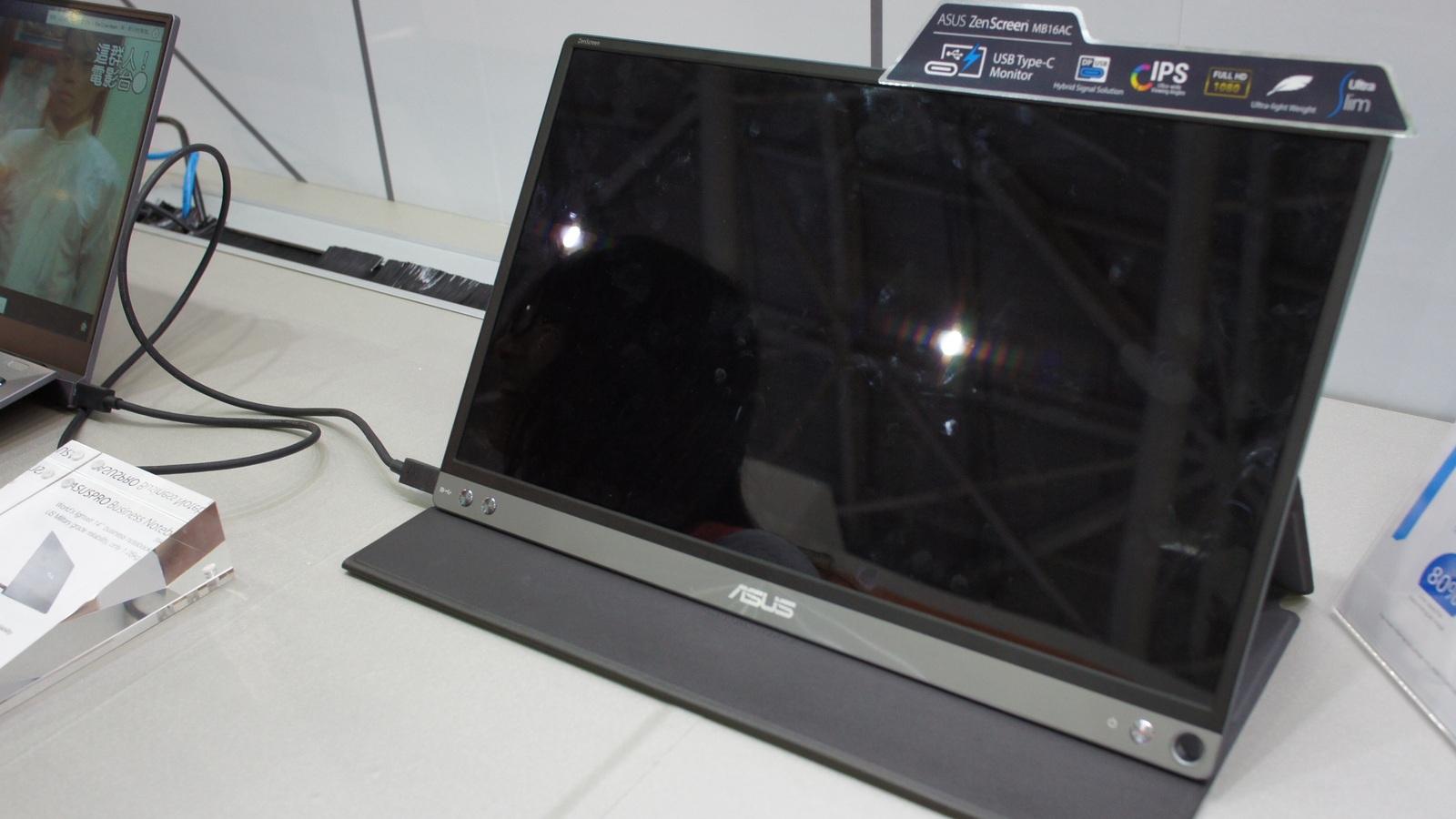
Portable Monitors: The Details That Make or Break Your Setup
Check the complete video and power route before choosing a panel. The details of scaling, brightness and the stand decide how useful it is.

The most useful portable monitor is not necessarily the one with the sharpest panel. It is the one you can connect, position and read comfortably at the place where you actually work. A beautiful screen is a poor travelling companion if it needs a driver your work laptop will not let you install or a power arrangement you discover only after unpacking it.
Start by drawing the proposed connection: computer to screen, screen to power, and any adapters in between. Then check each link against the manuals. This small exercise eliminates more buying mistakes than comparing screen size alone.
A USB-C socket is the beginning of the question
USB-C describes a connector. For a conventional USB-C video connection, the source must provide a supported video output and the cable and display must support that route. A socket that charges a device is not, by that fact alone, a working monitor output.
VESA’s DisplayPort-over-USB-C explanation describes how DisplayPort video, USB data and power can share a connector. It describes a capability, not a promise that every USB-C product implements it. Check your exact laptop model and the particular port you intend to use for DisplayPort Alt Mode or another documented compatible video route, such as a supported Thunderbolt connection.
Next read the monitor’s port descriptions. Two sockets of the same shape need not perform the same job. One may accept power only; another may accept video and power. Identify the intended input before blaming the laptop.
The cable also needs the right capabilities. Use the supplied video-capable cable for the initial connection. A charging cable borrowed from another device is not an adequate diagnostic reference merely because it fits. If you need a longer replacement, buy against the required video and power specifications, not “USB-C” alone.
For an HDMI connection, plan power separately according to the monitor’s instructions. Check whether the display uses full-size, mini- or micro-HDMI and buy the correct cable. A product photo that hides the side panel can conceal a surprisingly inconvenient shopping list.
Native video and USB graphics are different purchases
Some portable displays use a native video signal. Others offer USB graphics that depends on software; certain models support both. This distinction matters on a managed computer.
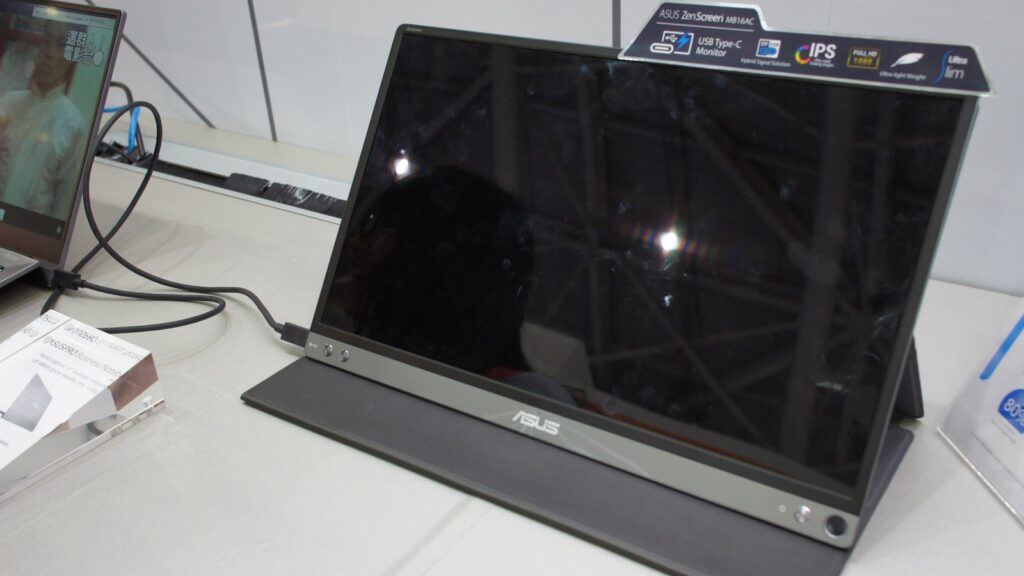
For example, ASUS documents a hybrid connection on the ZenScreen MB16ACV, with a DisplayLink driver required for its USB-A connection. That does not mean a passive USB-A adapter gives any USB-C monitor video support. The display itself must implement the relevant system.
Ask your employer’s IT team about installation permission before buying a driver-dependent screen for a work laptop. Also check operating-system support, required permissions and any limitations relevant to the applications you use. “Works with a laptop” is not a sufficiently precise compatibility statement.
A sensible shortlist records the route for each candidate: native USB-C video, HDMI plus power, or documented USB graphics. If you cannot describe how a candidate will connect to your machine, leave it off the shortlist until you can.
One cable can still mean several power compromises
A monitor connected only to a laptop draws on the laptop’s available power. A separate supply can change the arrangement. Some screens also pass power back to the computer, but the advertised input rating and the power delivered onward are not necessarily the same.
The Dell C1422H manual makes this concrete: with a 65W adapter connected, its maximum delivery to the computer is 45W; with a 90W-or-higher adapter, the maximum is 65W. Those figures apply to that model. They are not a universal allowance to subtract from every monitor’s charger rating.
For a computer with higher power requirements, a tidy single-cable arrangement may therefore leave the battery discharging under load. Check the documented output to the laptop, then compare it with that laptop’s requirements. Keeping the laptop’s own charger connected may be the appropriate solution.
If the screen blanks when you raise brightness, do not conclude immediately that the panel is faulty. Follow the manufacturer’s troubleshooting procedure, verify the supply and reconnect with a known suitable cable. If external power resolves the problem, investigate the original power arrangement rather than treating lower brightness as the only solution.
For travel planning, compare the complete kit: screen, protective cover, stand, power supply and cables. A bare-panel weight is not the weight you carry. Likewise, “one cable” is only an advantage if it works with your ports, brightness requirement and battery expectations.
More pixels do not automatically create more useful space
Resolution counts pixels; scaling determines how large much of the interface appears. A small high-resolution display can make text sharper while still needing larger scaling to remain comfortable. That is not a failure, but it changes the value of paying for the extra pixels.
Consider a simplified desktop calculation, not a measurement of a particular application. A 3840 × 2160 display at 200% scaling has a nominal logical working area of roughly 1920 × 1080. The additional pixels can improve detail rather than doubling usable window space. Real application behaviour depends on the operating system and the application’s scaling support.
For spreadsheets, compare the number of columns and rows you can comfortably read. For writing, consider a taller aspect ratio and whether the stand supports portrait use. For a reference document beside a laptop, a modest-resolution screen may already do the job. Judge the workspace at a comfortable text size, not at the smallest setting the operating system permits.
On Windows, Microsoft recommends selecting the intended display before changing scale and resolution. Start with its recommended resolution; using a lower-than-native resolution can make text less sharp. Adjust scaling to make the interface comfortable instead of assuming reduced resolution is the correct way to enlarge it.
Brightness, colour and motion need separate checks
A brightness figure without conditions is incomplete. Ask whether it is typical sustained brightness, a peak value, or dependent on an external supply. Compare it with the environment: a dim room, a bright window-side desk and outdoor use are different requirements. Reflections and screen finish matter alongside the number.
ASUS lists the MB16ACV at 250 cd/m² typical brightness and 1920 × 1080 at up to 60Hz. That is an example of a specified operating point, not proof that it will be comfortable in sunlight or a recommendation to buy that particular model.
Colour gamut describes a range of colours; accuracy concerns how faithfully the screen reproduces the intended colours. A large percentage in an advert is not an accuracy result. Check which colour space is named and whether the percentage refers to coverage or volume. For paid colour work, seek a disclosed measurement method and a calibration workflow you can actually use. EIZO’s explanation of calibration reports is a useful example of the separate measurements that a colour-work specification can document.
An HDR-input claim also leaves questions unanswered. Ask what brightness, contrast behaviour and certification sit behind it. Accepting an HDR signal does not, by itself, tell you how convincing the result will look. For ordinary documents, a stable, readable SDR picture may be the more useful priority.
Refresh rate and pixel response are different again. For gaming, establish which resolution and refresh rate the intended input supports together. Then check compatibility with your computer or console. A high-refresh headline does not guarantee every port accepts that mode, and it says little about motion clarity without measurements.
The stand can decide whether the screen gets used
A portable display has to occupy a real table. Check how far its cover or kickstand extends behind it, whether cables protrude into your mouse space, and whether the chosen angle remains stable when you type.
Touch is only useful if both the operating system and the connection support the intended touch function. It also makes stability more important. A screen that rocks every time you tap it can undo the convenience you paid for. Ask whether touch needs a separate data connection and whether it works on your operating system; do not infer it from video compatibility.
For document work, portrait mode is worth investigating, but confirm both the physical support and the software behaviour. Automatic rotation, manual rotation and a stand that can physically hold the panel upright are separate features.
Be cautious with clip-on designs that load a laptop lid. Check the permitted device dimensions and mounting instructions. A free-standing screen is often easier to move independently, while an attached design may suit someone who values a single assembly. Make that choice around your workspace rather than a photograph of an unusually spacious desk.
Set it up around the work, not the demo image
On Windows 11, press Windows + P and select Extend when you want a second workspace. Microsoft distinguishes Extend from Duplicate, which shows the same content on both screens. In Settings → System → Display, identify the screens and arrange their positions to match the desk.
On a Mac, use System Settings → Displays to arrange screens and choose the appropriate display settings. Apple notes that external-display limits depend on the Mac model, resolution and refresh rate. Check the exact Mac specification before planning several screens around a hub.
After the connection works, open the document or application you bought the screen for. Set a comfortable scale, choose the main display and confirm that the pointer crosses where you expect. Verify the actual refresh rate where it matters. Use the monitor’s own controls for settings the operating system does not expose.
Then disconnect and reconnect once, including after a normal sleep cycle. This checks the routine you will repeat when moving between desks. Keep the first setup simple; add a dock only after you know the direct connection works.
When a portable screen earns its place
It earns its place when you regularly need a second surface away from a fixed desk and can explain what stays on it: reference material, a meeting, a timeline or another document. If the screen will rarely leave home, compare the complete portable kit with a conventional monitor and a more adjustable stand.
Before ordering, you should be able to answer four practical questions: which port carries the picture, where power comes from, how comfortably you can read your work, and how the screen will stand on your table. Once those answers are solid, the panel specification becomes useful rather than distracting.
Smarter choices start with clearer information.
MASEVIO researches, compares and explains products, technology and emerging ideas to help make everyday decisions easier to understand.
MASEVIO may use affiliate links in some articles. If you buy through an eligible link, MASEVIO may earn a commission at no additional cost to you. Editorial opinions are not determined by affiliate partnerships.


Make every day smarter.
Discover what matters now — useful ideas, standout products, clearer comparisons and stories worth knowing.