
Slow Wi-Fi at Home? Diagnose the Problem Before Buying Mesh
Find out whether the bottleneck is your internet connection, wireless coverage or a weak mesh link. A repeatable diagnostic route before spending on new equipment.

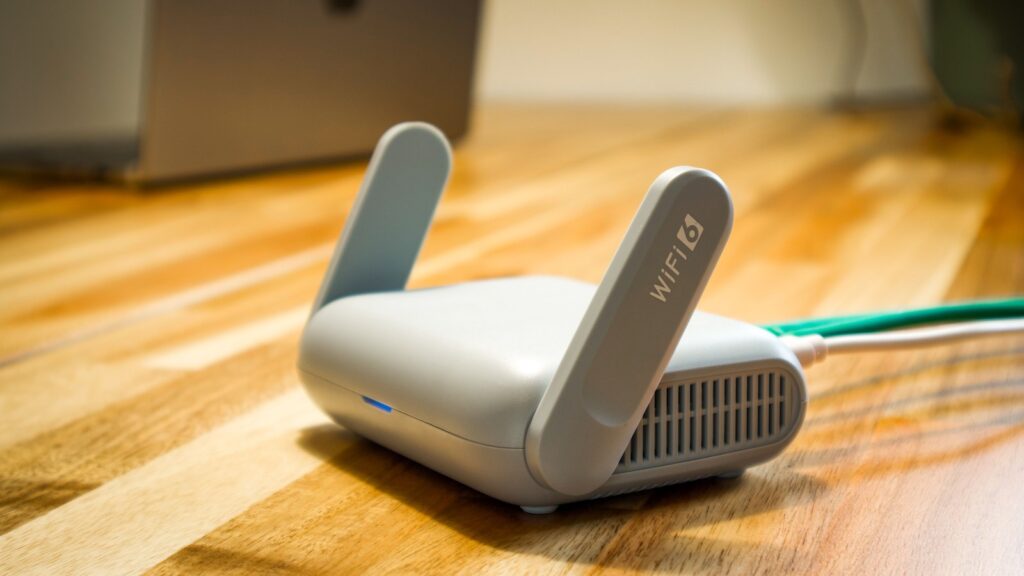
A faster broadband plan cannot move a router out of a cupboard. A new mesh kit cannot repair a slow connection arriving at the house. Before replacing either, find the part of the connection that is failing.
There are three useful comparisons: a wired device on the main router, the same wireless device close to it, and that device in the room where things go wrong. You do not need a perfect laboratory result. You need a repeatable difference that points to the next sensible check.
Make the tests comparable
Choose a quiet moment and pause large downloads or uploads that you control. Keep the test service and device consistent between runs. Note the time, room, connection type, download and upload results, and the symptom that actually bothers you.
If a VPN is mandatory for work, keep it enabled and ask your administrator about testing. Otherwise, note whether a VPN is in use so you do not mistake the route through a remote service for the speed of the local wireless network.
Also distinguish the test endpoints. Google explains that its router speed test measures the internet connection at the primary device. A good router-app result does not measure the final wireless hop to your laptop. The wireless link rate shown in a device’s settings is not a promise of download speed either.
- Test a wired baseline. Connect a suitable computer to a LAN port on the main router or ISP gateway. Turn off that computer’s Wi-Fi for the test so you know the route being measured. Use compatible, known-working Ethernet equipment.
- Test Wi-Fi nearby. Disconnect the test cable, enable Wi-Fi and measure close to the main router with an unobstructed path. Keep the same computer where possible.
- Test the troublesome room. Repeat there, then try a second device in the same spot. This helps separate a room problem from a problem with one laptop or phone.
- Repeat the comparison. Check again when the symptom normally appears. One quiet-morning result cannot explain a recurring evening problem on its own.
If you cannot make a wired measurement, use the router’s own internet test if available, then compare wireless results in several locations. You can still learn something, but the isolation of the incoming connection is less complete. Do not buy extra adapters just to generate a number before trying the comparisons you can make.
Rule out the cheap bottlenecks first
If the wired baseline is unexpectedly slow, check the network port, cable and any switch in the path. A link negotiated below the speed your hardware supports is worth investigating. Google’s troubleshooting documentation notes that the slowest upstream component can limit the connection.
Test another known-working cable or port where available. Confirm that the test computer itself can support the result you are trying to measure. A premium wireless router will not remove a limit in an old adapter used to test it.
If several wired devices show the same problem and your local equipment checks out, contact the ISP with the times and results. A single result below an advertised headline rate is not enough to identify fault or establish a contractual claim. Use your provider’s test requirements for that separate purpose.
Move the router before adding another one
Try an open position away from an enclosed cabinet and immediate obstructions. Do not stretch or disturb the incoming fibre cable to reach a preferred shelf; use an appropriate Ethernet arrangement or ask the provider about moving the termination equipment.
TP-Link’s placement guidance recommends checking the connection between nodes and moving equipment away from walls and metal obstructions. The exact best position depends on the building. Mark your starting position, change one thing and repeat the same room test.
Update the router’s firmware using its supported method and the device’s normal wireless drivers. Save the existing configuration before changing advanced settings. A factory reset is not a useful first response when it might erase the settings needed to connect to your provider.
Do not trade security for a speed-test result
Keep supported Wi-Fi security enabled. If a particular device cannot join, investigate its compatibility rather than opening the whole network. Avoid lists of unexplained instructions to disable firewalls, encryption or other protections.
For Apple clients, Apple’s recommended router settings include automatic firmware updates and automatic channel selection; its guidance also cautions that wider channels can be more exposed to interference. That is a reason to check the manufacturer’s recommendations, not to force the widest channel everywhere.
Do not split every band into a separate network as an automatic fix. It may make a diagnostic comparison easier on some equipment, but the appropriate permanent setup depends on the router and client devices. Keep notes so you can undo the change.
Choose the least complicated fix that reaches the room
TP-Link’s comparison of coverage options explains the different approaches, but its product preferences are those of a manufacturer. You do not need to adopt its brand or buy the largest package to use the underlying distinctions.
Do not choose a node count from floor area alone. A room behind several difficult walls and an open room of the same size are not equivalent. Check whether a safe wired route exists before paying for more wireless hops.
With mesh, inspect the link between the nodes
The connection from a satellite to the rest of the network is its backhaul. A device can show a strong connection to a nearby satellite while that satellite has a poor connection upstream.
Google’s mesh test measures those inter-node connections. Place a wireless node where it can still receive a good upstream signal, rather than directly in the dead zone, then re-run the test. More nodes are not automatically the cure for badly positioned ones.
If the system supports Ethernet backhaul and you have cabling, use its documented topology. For example, Deco’s wiring rules differ between Router and Access Point modes. Verify the backhaul type in the app after connecting it; the presence of an Ethernet cable is not proof that the intended path is working.
Check the speed capability of the node ports and any switch too. Do not wire devices into a loop or copy a diagram for a different operating mode.
Decide which device is the router
Adding a second routing device can create double NAT. Google’s double-NAT guidance says this is not a noticeable performance issue for most people, though it can affect some games, port forwarding and communication between separate networks. It should not be blamed for every slow download.
If you keep the ISP router in charge, a supported Access Point mode may be appropriate. Deco supports this arrangement, but some of its routing-related features are unavailable in that mode. Other systems have different restrictions: Google’s multi-device mesh does not offer the same bridge-mode behaviour.
Confirm the model-specific arrangement before changing modes. If the provider supplies television, telephony or special connection settings, ask what must remain configured. Do not disconnect or reset the gateway without knowing how those services will be restored.
Retest the task that mattered
After each change, repeat the original comparison and the real task: a call from the office, streaming in the bedroom or a game from the usual desk. A larger download number is not a complete fix if the call still drops when another person starts an upload.
Record whether the improvement holds during ordinary household use. If the network deteriorates only under load, check the router’s supported traffic-management features and their configured connection rates before buying more coverage equipment.
Will Wi-Fi 7 fix thick walls?
The standard on the box is not a substitute for a usable radio path. First decide where the network needs another access point and how that point will connect upstream. Then compare suitable hardware and the devices that will use it.
Why do I have full bars and a slow connection?
The bars do not describe the entire path to the internet. Check the backhaul, the incoming connection and the load on the network. Compare the result with a wired baseline rather than adding a node on signal strength alone.
What if only one laptop has the problem?
Keep the working network as your reference. Check that laptop’s updates and adapter capabilities, then compare it with a second device in the same location. Replacing the whole system is premature while the difference follows one device.
The purchase decision comes at the end: buy coverage when you have found a coverage problem, buy compatible routing equipment when the router is the limit, and ask the ISP to investigate when the incoming connection is the unresolved part. Sometimes the best upgrade is moving what you already own.
Smarter choices start with clearer information.
MASEVIO researches, compares and explains products, technology and emerging ideas to help make everyday decisions easier to understand.
MASEVIO may use affiliate links in some articles. If you buy through an eligible link, MASEVIO may earn a commission at no additional cost to you. Editorial opinions are not determined by affiliate partnerships.
Make every day smarter.
Discover what matters now — useful ideas, standout products, clearer comparisons and stories worth knowing.