
Cloud Sync Is Not Your Whole Backup Plan: Protect Photos and Files—and Test a Restore
Keep cloud convenience and add a recovery route you control. A practical guide to downloading originals, making a separate copy and checking that you can restore it.

Seeing a photograph on two devices feels reassuring. It does not tell you what would happen if you deleted it, lost the account or discovered that the only full-size original lived online. A useful backup plan answers a more demanding question: where could you recover an earlier, usable copy?
You can keep the convenience of cloud sync. Add a separate copy, a way to retain older versions and a recovery test. Start with the files you could not replace rather than buying equipment before you know what needs protecting.
First, work out what you actually have
Write a short inventory: photographs on each phone, documents on each computer, files in shared folders and any material in a work or school account. Note the account that owns them and where the originals are stored. Being able to view a shared item does not necessarily give you an independent copy.
Choose a small sample to inspect: an older photograph, a recent video, an edited image and an important document. Check whether they open when the device is offline. This is a useful availability check, but passing it does not mean the file has an independent backup.
Do not use your only important file to experiment with deletion. The test later in this guide uses a harmless file created for that purpose.
Know which changes your cloud service propagates
In iCloud Photos, deleting an item on one connected device deletes it across the library. Apple also says these photos are not duplicated in the iPhone’s iCloud backup. A second Apple device showing the same library is therefore not your separate recovery plan.
OneDrive offers recovery features, but the account type matters. Microsoft’s recovery guidance distinguishes personal and work/school retention. Personal recycle-bin recovery is normally limited to 30 days; eligible Microsoft 365 subscribers also have a whole-OneDrive rollback option. Do not base a long-term archive on an assumption that deleted items remain recoverable indefinitely.
Google Photos has its own deletion rules. Read the instructions for your device before removing items. A cloud library, a phone’s gallery and an exported archive are different locations; do not assume an action in one app has the same effect in another.
Get real files onto the backup source
OneDrive: download before copying
Microsoft’s Files On-Demand documentation explains why a file can appear in Explorer without being stored locally. For the folders you want to protect, choose Always keep on this device, allow the download to finish and check the available space before copying.
Open representative files offline before proceeding. If a folder is larger than the computer’s free space, work in manageable batches or use a supported export/backup route that does not depend on downloading everything at once. Do not delete cloud content to make room for an unverified local copy.
iCloud Photos: choose the kind of copy you need
Apple’s copying and archiving instructions provide routes for exporting photographs and videos. On a Mac, select items in Photos and use File → Export; choose unmodified originals when that is what you need to preserve. If you also want edited appearances, export those separately and label them clearly.
A collection of exported image files and a Photos library are not identical archives. Apple’s library-backup guidance also covers local library copies and Time Machine, with a warning against placing the live external library and its Time Machine backup on the same storage device. Referenced files outside the library need separate coverage.
Make a sample export before committing to a large one. Check a video, an edited photo and any special formats you care about. A file that exists but cannot be opened by your recovery software is a problem to solve now.
Google Photos: preserve the complete export
Use Google Takeout’s export process: deselect products you do not need, select Google Photos and review the included albums. Choose an export format, then download every archive part. Extra information can be in JSON sidecar files, so keep those with the media. Downloading is not deletion.
Do not immediately run a duplicate remover over the export. First understand the contents and keep one untouched export set. Renaming, flattening album folders or discarding small files may make later reconstruction harder.
Build a separate copy that will survive a mistake
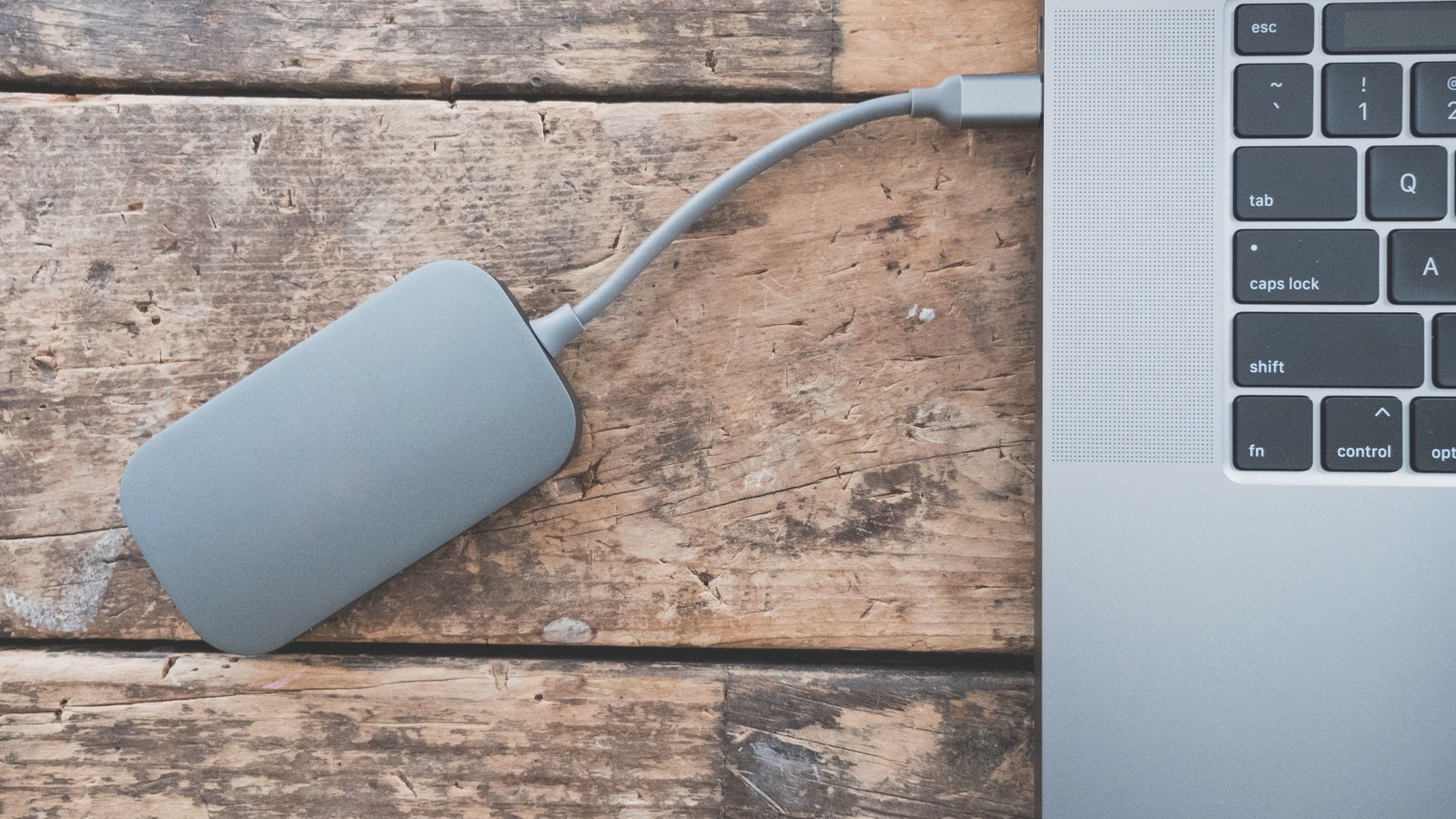
For a first pass, create a dated folder on an external drive with enough free space and copy the selected material into it. Do not move the originals. Give the folder a recognisable name and include a short note recording the source account, export date and contents.
A manually dated copy is a snapshot. It can be useful, but it does not update itself. Avoid repeatedly replacing the only old copy with whatever is currently on the computer: that can preserve an unnoticed mistake while discarding the version you needed.
The NCSC’s data-security guidance recommends multiple copies, separate locations and restore testing. Its 3-2-1 model uses at least three copies on two devices, with one offsite. For a household, the practical point is to avoid having every usable copy depend on the same computer, room or account.
For sensitive documents, consider backup encryption and protect the unlocking information separately. A second copy that nobody in the household can unlock after a lost device is not a workable recovery route. Never place the only recovery key inside the backup it is needed to open.
Use versioned backups for files that keep changing
Windows File History can keep versions of covered local files on an external drive or network destination. In Control Panel → System and Security → File History, select the backup drive and turn it on. Confirm that your actual folders are included; do not infer coverage from the feature being enabled.
For cloud folders, verify that the needed files are fully local and that the chosen backup tool really includes them. Check its logs and restore a sample. A green sync indicator and a successful backup result describe different processes.
When using a removable drive for an offline copy, complete the backup, safely eject it and disconnect it. The FTC recommends disconnecting the backup drive after use. Remember to reconnect it for the next update: disconnection protects the stored copy but also stops fresh backups reaching it.
Test recovery without sacrificing the original
- Create a test folder. Add a harmless text document and a copy of a non-sensitive image. Put a recognisable sentence in the document.
- Run the chosen backup. Check that it completed and that the test folder is in scope. Record the date.
- Change the test document. Replace its sentence and let a later version be backed up if your tool supports versioning.
- Restore the earlier version to a different folder. Use the tool’s alternate-location option. Do not restore over the current document.
- Open the restored files. Verify the earlier sentence, the image and the ability to find the restored folder. If appropriate, repeat from another trusted computer using the backup’s supported recovery method.
This checks more than whether a drive contains data: it checks that you know how to find the right version. It does not prove every file is intact, so also inspect a varied sample of your real archive without modifying the originals.
If a check fails, stop before cleaning anything up
For a disconnected File History drive, Microsoft documents reconnection and a manual Run now option. Correct the missing backup first, then verify a new restore. Do not dismiss an old-copy warning merely because cloud sync looks current.
Questions worth settling before you finish
Do I have to stop using cloud sync?
No. Keep it for access and collaboration. The additional job is to preserve a usable recovery point outside the changes you make in the live library.
Can one external drive be enough?
It is a useful improvement if it adds a genuinely separate copy. It still leaves a single backup device and, if stored beside the computer, a shared physical risk. Prioritise another location for the material you cannot recreate.
How often should I update it?
Choose the longest gap you could tolerate losing, then build a routine that meets it. A document edited daily and an old photo archive do not necessarily need the same schedule. Write down the next check instead of relying on memory.
Before deleting anything to reclaim storage, finish the recovery test. The useful milestone is not “my files are in the cloud”. It is “I recovered the file I needed, from the copy I intended to keep”.
Smarter choices start with clearer information.
MASEVIO researches, compares and explains products, technology and emerging ideas to help make everyday decisions easier to understand.
MASEVIO may use affiliate links in some articles. If you buy through an eligible link, MASEVIO may earn a commission at no additional cost to you. Editorial opinions are not determined by affiliate partnerships.



Make every day smarter.
Discover what matters now — useful ideas, standout products, clearer comparisons and stories worth knowing.