
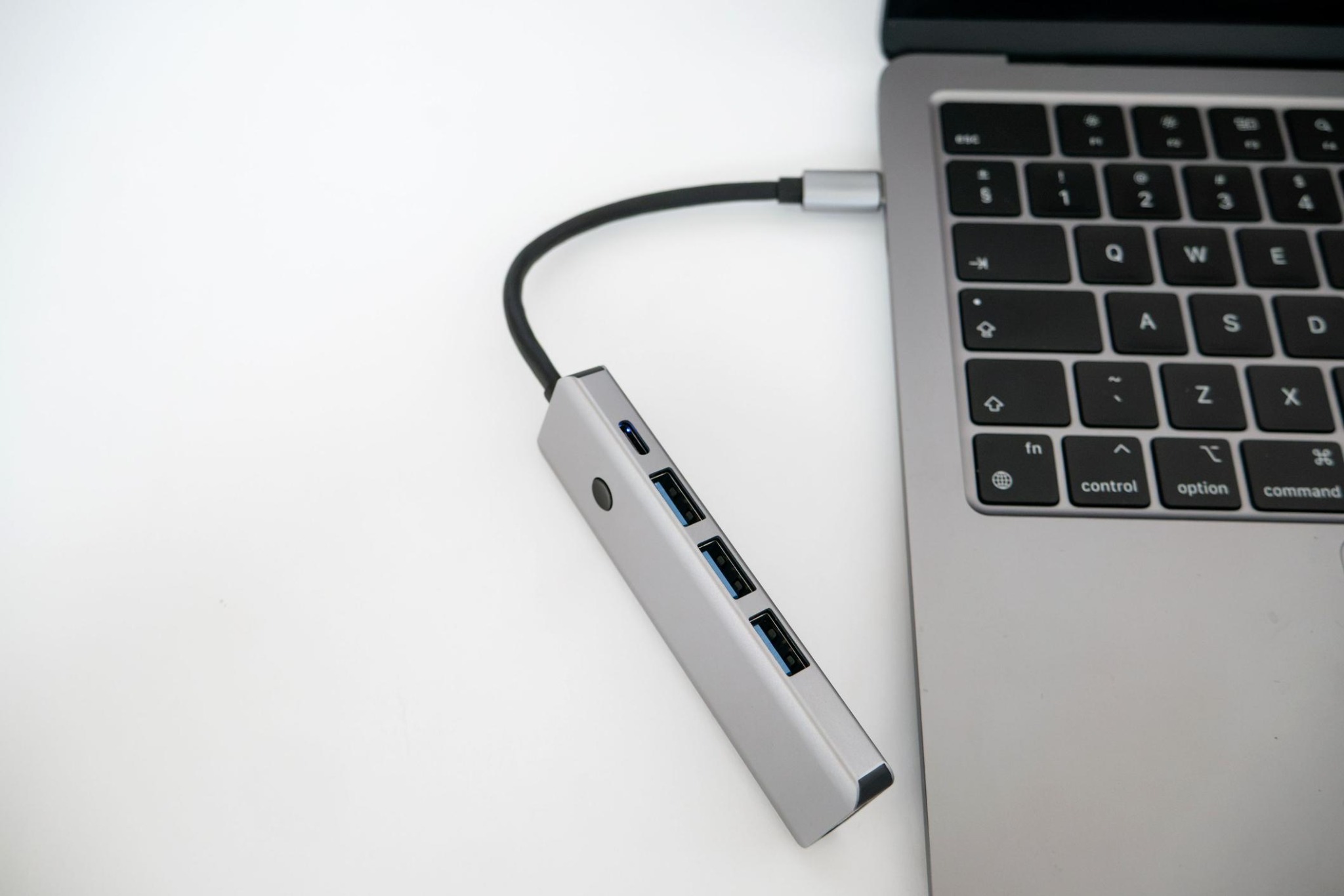
10 USB-C Checks Before You Buy a Cable, Charger or Dock
The plug can fit while the connection falls short. These ten checks help you match cables, chargers and docks to charging, storage and display needs.
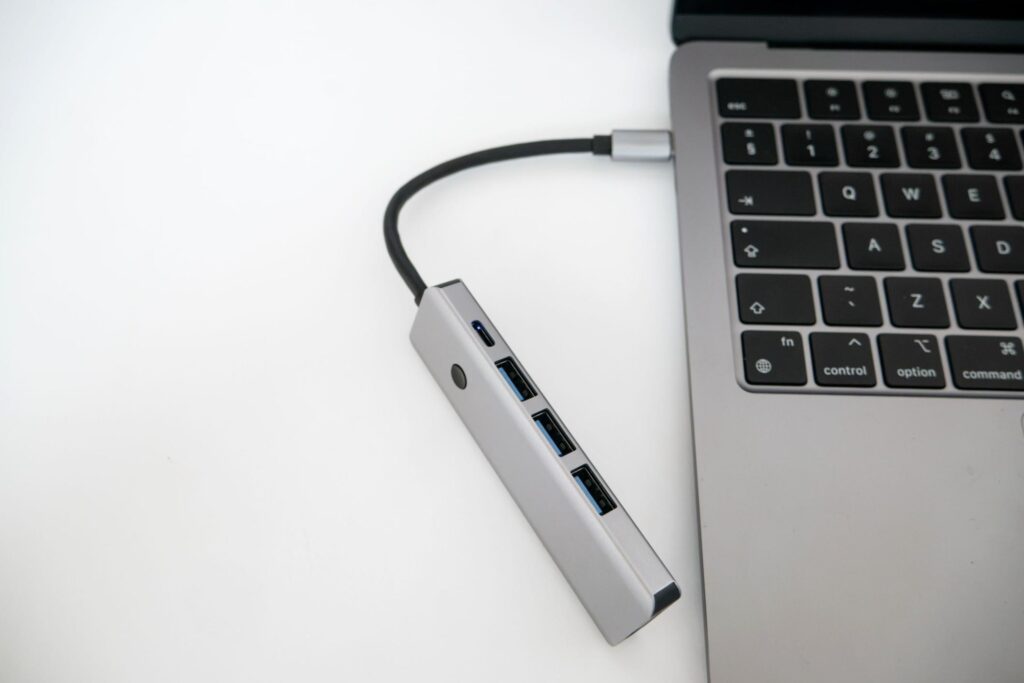
A USB-C cable can charge a laptop and still leave its monitor dark. Another can move files, but make an expensive SSD feel painfully slow. Before replacing either device, check what the connection actually supports.
These ten USB-C checks cover the decisions that matter when buying a cable, charger or dock. They are arranged by task, rather than ranked as products. Selection is based on standards documentation and manufacturers’ compatibility guidance; the examples explain specifications, not measured performance.
Start with the job you need it to do
Charging power, data speed and display support are separate requirements. Use this shortlist to identify what you need, then work through the relevant checks below.
1. Check the specification behind the plug
Start with the exact model numbers of the devices you want to connect. Write down the job: charging, file transfer, video, or all three. A connector that fits answers only the physical part of the question.
The USB-IF’s cable marking requirements distinguish power ratings from data rates. Look for both where both matter. A listing that says only “USB-C” leaves too much unanswered for an SSD or monitor purchase.
2. Match the charger’s output to the device’s input
A headline wattage is not the whole charging specification. Check the device’s documented input requirements against the charger’s voltage and current profiles, and use a port that accepts charging.
Microsoft’s slow-charging guidance identifies incompatible or insufficient chargers, unsuitable cables and the wrong charging port as possible causes. A laptop that loses battery while plugged in does not automatically need a replacement battery.
3. Read cable watts separately from cable speed
The USB Power Delivery specification extends supported charging power up to 240W with compatible equipment. That is a capability ceiling, not a promise that every connected device receives 240W.
For charging, choose a cable documented for the power your setup needs. Then check data and video independently. Paying for a higher charging rating alone will not solve a slow file transfer or missing display signal. Nor does an older cable become useless simply because newer labels exist.
4. Check what happens when a second device plugs in
A multiport charger’s total output can differ from the power available to one device when other ports are occupied.
For example, Anker’s specifications for this 100W Prime charger list up to 100W from one USB-C port, but a 65W + 35W split when both USB-C ports are in use. That is one model’s arrangement, not a rule for all 100W chargers. Compare the combination you will actually use: laptop plus phone, rather than laptop alone.
5. Find the cable’s data rate before buying it for storage
A charging cable can carry data without being a fast data cable. Apple states that the USB-C cable supplied with its USB-C iPhones supports USB 2 speeds; faster supported transfers require an appropriate cable and phone.
For large photo or video transfers, look for an explicit data rate. Keep a cable supplied with a drive identifiable so it does not disappear into a drawer of visually similar charging leads.
6. Check the computer’s exact storage protocol
A faster-sounding port name does not guarantee the best result with every SSD. Kingston’s XS2000 support documentation explains that its USB 3.2 Gen 2×2 drive needs a host supporting that 20Gbps mode for optimal interface performance; Thunderbolt or USB4 branding alone is insufficient confirmation.
Check the computer’s specification for the drive’s required mode before paying extra. Interface rates and advertised drive speeds are not a guarantee of real file-copy speed, which also depends on the rest of the transfer.
7. Confirm video support at the source
For a conventional USB-C display connection, check that the source supports the required video output. VESA’s DisplayPort FAQ describes DisplayPort Alt Mode and advises checking the device documentation for support.
Then match the cable or adapter to the display input and intended resolution and refresh rate. A USB-C-to-HDMI adapter cannot create a missing DisplayPort signal. If a display only charges the laptop, that alone does not establish that the video path works.
8. Verify the screen arrangement, not just the screen count
Two video sockets do not necessarily mean two independent desktops on your computer. Ask for a compatibility statement covering your exact laptop, operating system and intended display arrangement.
CalDigit’s TS4 compatibility notes, for example, distinguish base M1/M2 Macs from Pro and Max variants for external display support. Do not extend one model’s answer to a whole product family. Check whether a quoted configuration means mirroring or an extended desktop, and whether it requires software or a particular laptop-lid position.
9. Check the power that reaches the laptop through a dock
“100W power delivery” may describe what a dock accepts, rather than what it passes on. CalDigit’s SOHO Dock specification lists up to 100W input and up to 90W laptop charging.
Read the input and host-output figures separately, and check whether a suitable power supply is included. A dock can be compatible with your accessories yet still be the wrong choice for powering your laptop through a demanding working day.
10. Verify the exact cable version and length
Do not transfer a specification from a similar-looking cable, another length or a different generation. Apple’s documentation for its 0.8m Thunderbolt 3 cable, for example, describes different data and video capabilities from its USB-C Charge Cable.
Choose the length you need, then check the specifications for that precise version. Before ordering a replacement, try the manufacturer-supplied cable and a direct connection where possible; Microsoft’s USB-C troubleshooting guidance also distinguishes cable, port and intermediate-dock limitations.
What to put on your shopping list
Write a short requirement before browsing: “This laptop, this monitor at this resolution and refresh rate, this SSD interface, and this charging requirement.” Ask the seller to confirm any missing detail against the exact model.
If a cable you already own meets those requirements, keep it. The useful upgrade is the one that fixes the weak link you have identified.
Smarter choices start with clearer information.
MASEVIO researches, compares and explains products, technology and emerging ideas to help make everyday decisions easier to understand.
MASEVIO may use affiliate links in some articles. If you buy through an eligible link, MASEVIO may earn a commission at no additional cost to you. Editorial opinions are not determined by affiliate partnerships.


Make every day smarter.
Discover what matters now — useful ideas, standout products, clearer comparisons and stories worth knowing.